Installing Codex & Logging In
Get set up on your phone or laptop and log in for the first time – takes under 2 minutes.
| For | Module | Read Time |
|---|---|---|
| Everyone – Owner, Manager & Staff | Account Access | 2 min |
Restaurant Codex is designed to be used on your phone, tablet, or computer. This article walks you through installing it and logging in for the first time.
You need to have been invited by your Owner or Manager before you can log in. Invites are sent by SMS to your phone number. Check your messages for a login link from Restaurant Codex.
If you haven't received anything, ask your manager to check your invite was sent.
Installing Codex on Your Phone
Restaurant Codex is a web app – there's nothing to download from the App Store or Google Play. You install it directly from your browser in seconds, and it works exactly like a regular app.
iPhone (Safari)
This only works in Safari on iPhone. If you're using Chrome or another browser, switch to Safari first.
- Open Safari on your iPhone
- Go to app.restaurantcodex.com
- Tap the Share button at the bottom (the box with an arrow pointing up)
- Scroll down and tap Add to Home Screen
- Tap Add in the top right corner
- The Codex icon appears on your home screen – tap it to open like any app
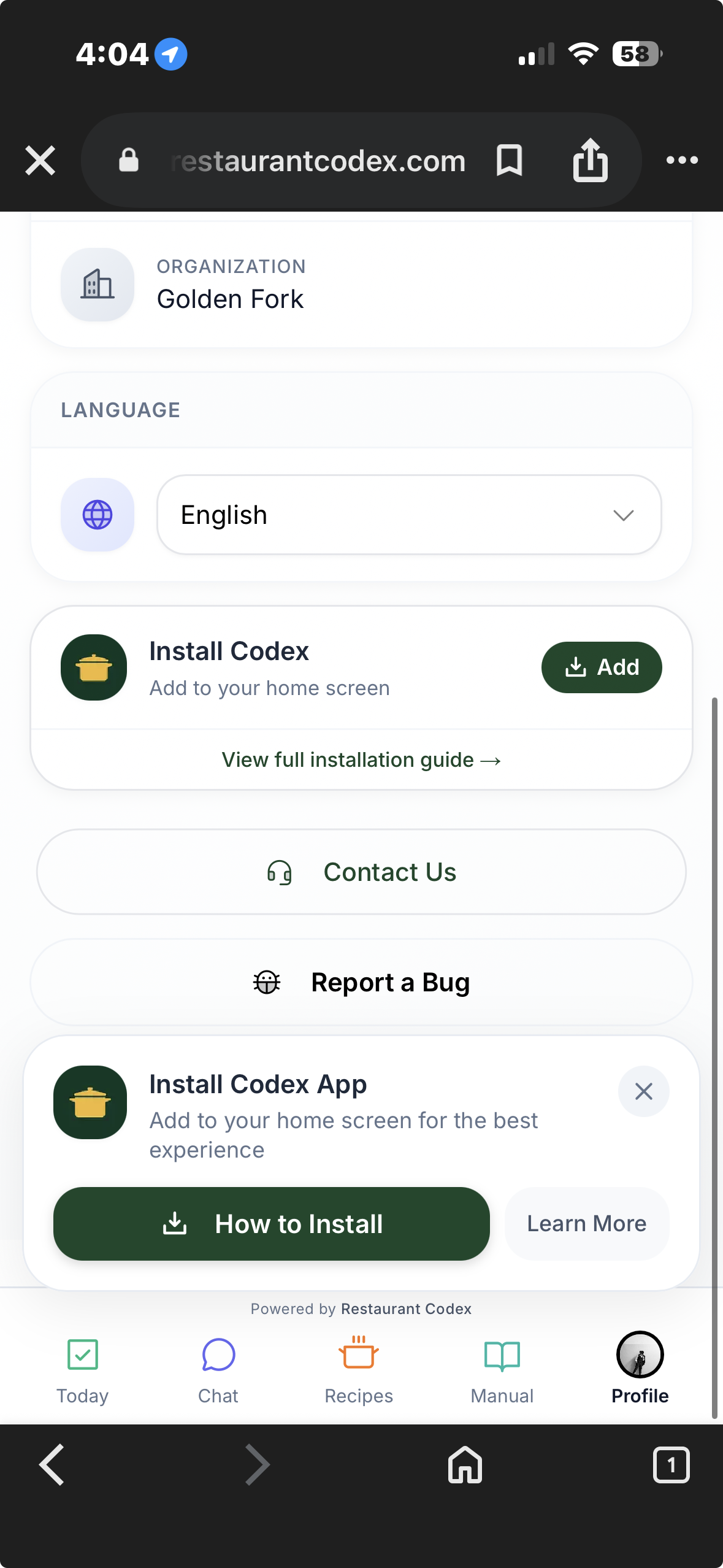
Image A17 — Install Codex on iPhone (Add to Home Screen)
Android (Chrome)
- Open Chrome on your Android phone
- Go to app.restaurantcodex.com
- Tap the three-dot menu (⋮) in the top right corner
- Tap Add to Home Screen or Install App
- Tap Install to confirm
- The Codex icon appears on your home screen – tap it to open
Add Codex to your home screen so it's always one tap away during a busy shift. It opens and feels exactly like a native app – full screen, no browser bar.
On a Laptop or Desktop Computer
- Open Chrome or Edge and go to app.restaurantcodex.com
- Look for the install icon in the address bar (a small screen with a down arrow) and click it
- Click Install – Codex will open as a standalone window on your desktop
Two Ways to Log In as Staff
Once your manager has sent your invite, there are two ways to log in – for the first time and every time after that.
Option 1 – Use the SMS Login Link
This is the simplest way. When your manager sends your invite, you automatically receive an SMS with a login link.
- Open the SMS from Restaurant Codex on your phone
- Tap the login link in the message
- You'll be taken straight into your Codex account
Bookmark or save the link after your first login so you can come back quickly without needing the SMS again.
Option 2 – Scan the QR Code
Your restaurant may have a QR code displayed at the location – on a noticeboard, near the entrance, or in the back office.
- Open your phone camera and point it at the QR code
- Tap the link that appears – it'll take you directly to the Codex login screen
- Enter your phone number and log in
The QR code is for logging in – not for signing up. You still need your manager to send you an invite first.
Logging In as an Owner or Manager
Owners and Managers log in directly at the Restaurant Codex website.
- Go to restaurantcodex.com and click Login in the top right – or go directly to app.restaurantcodex.com
- Enter your phone number or email and password
- Click Sign In
I Forgot My Password
- On the login screen, tap or click Forgot Password?
- Enter your phone number or email and tap Send Reset Link
- Check your phone (SMS) or email for the reset link
- Tap the link and set a new password
- Return to the app and log in with your new password
- Check your spam/junk folder first
- Make sure you're using the same phone number or email that was used when you were invited
Something Not Working?
If you run into any issue – can't log in, screen looks wrong, something isn't loading – don't worry about troubleshooting it yourself.
Just use the chat button to message us directly. Tell us:
- What you were trying to do
- What happened instead
- Which device you're on (phone or computer)
We'll get back to you and sort it out. That's it – no complicated steps, no guesswork.
Next Steps
- Welcome to Restaurant Codex → – understand what each module does
- How to Set Up Your Account & Invite Your Team → – for Owners & Managers
Chat with us using the support button or email support@restaurantcodex.com. See the quick setup steps.