How to Build Your SOPs & Manual Sections
Structure, create, and manage the operational backbone of your restaurant.
| For | Module | Read Time |
|---|---|---|
| Owner & Manager | Knowledge Base | 4 min |
Your Manual is the operational backbone of your restaurant – every process, procedure, and standard your team needs to do their job correctly. It's structured into sections, searchable, and access-controlled just like your Recipe Library.
How the Manual Is Structured – Sections
Your manual is organised into Sections – each one represents a department or area of your operation. You create and name your own sections, so the structure reflects how your restaurant actually works.
| Example Section | What Goes In It |
|---|---|
| Front of House | Service standards, table management, guest interaction, opening & closing FOH |
| Back of House | Kitchen procedures, prep standards, station setup, cleaning protocols |
| Bar | Pour standards, cocktail procedures, bar opening & closing, stock management |
| Health & Safety | Food safety, allergen handling, hygiene standards, emergency procedures |
| HR & Onboarding | New hire procedures, staff handbook, disciplinary process |
| Administration | Reporting, finance, supplier management, general admin procedures |
How to Create a Section: Go to Knowledge Base > My Manual > Manage Sections > Add Section. Name it, and it becomes a container for all the SOPs that belong to that area.
Start with 3 to 4 sections covering your most critical areas. Add more as your content grows.

Image C7 — Manual section overview
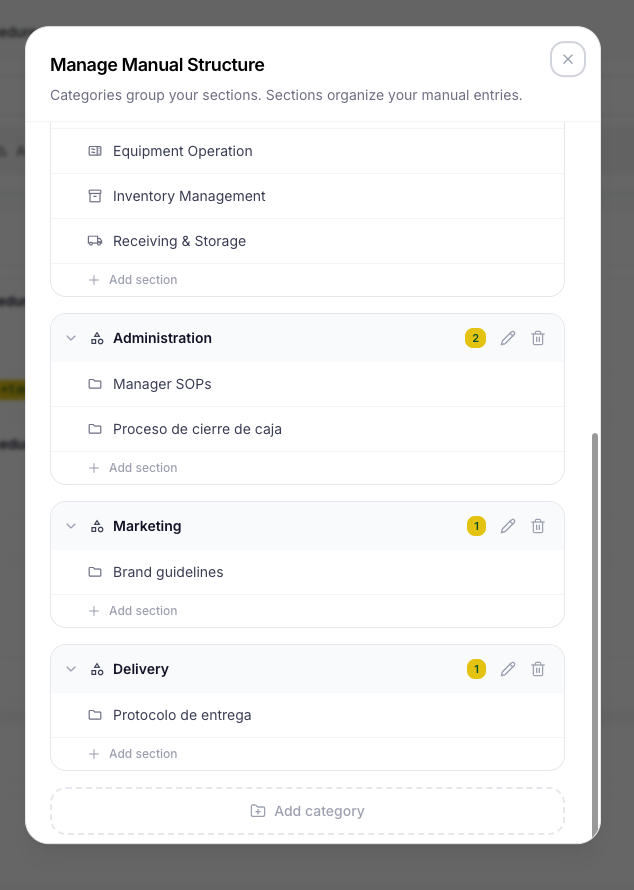
Image C8 — Manage sections screen
Three Ways to Create an SOP
When you click Add SOP, you're presented with three creation methods:
- Generate with AI – Describe what the SOP is for and Codex AI writes a first draft for you. Fastest option when creating SOPs from scratch – you start with a structured draft, not a blank page.
- Build From Scratch – Write the SOP directly inside the Codex editor with full control over the content and structure. Best for new procedures.
- Import From Document – Upload an existing Word doc or PDF. Codex AI reads and structures the content automatically. Review and confirm before saving.
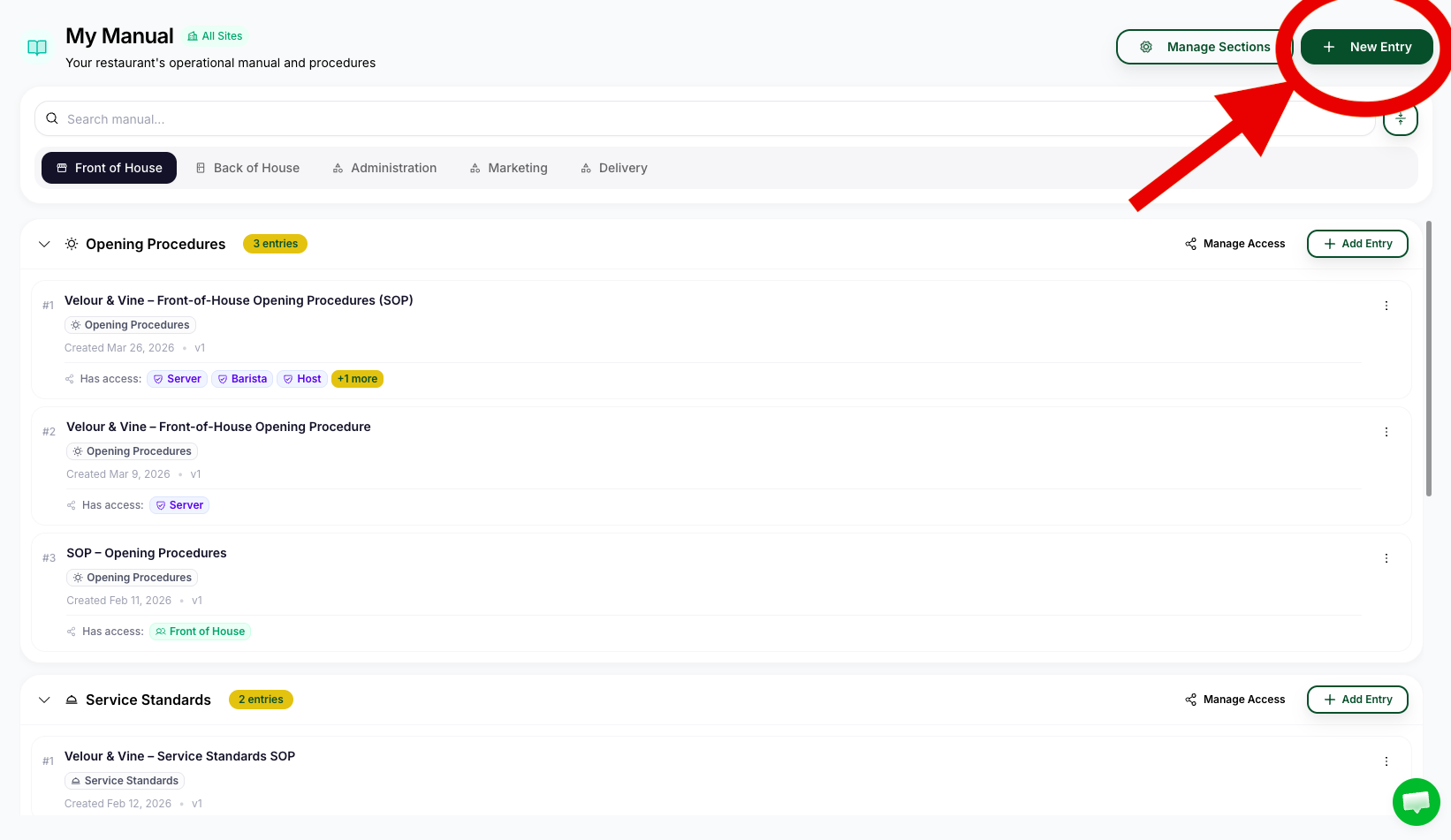
Image C9 — SOP creation mode selector
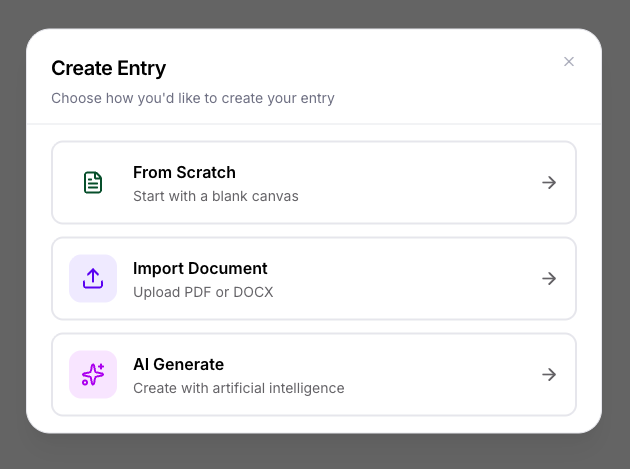
Image C10 — New SOP screen
Generating an SOP with AI
When you select Generate with AI, you provide context and the AI builds a structured first draft. Here's what you'll be asked:
| Input | What to Enter |
|---|---|
| Title | What is this SOP for? e.g. "Bar Closing Procedure" or "Allergen Handling Protocol" |
| Section | Which manual section this SOP belongs to |
| Who Is It For? | Which role or department will use this SOP – e.g. Bar Staff, Kitchen Team, All Staff |
| Staff Experience Level | New hires, experienced staff, or mixed? Affects the level of detail and language the AI uses |
The AI gives you a solid first draft – but always review it before saving. Add your specific details: your timings, your equipment names, your exact procedures. Generic inputs produce generic SOPs. The more specific your context, the better the output.
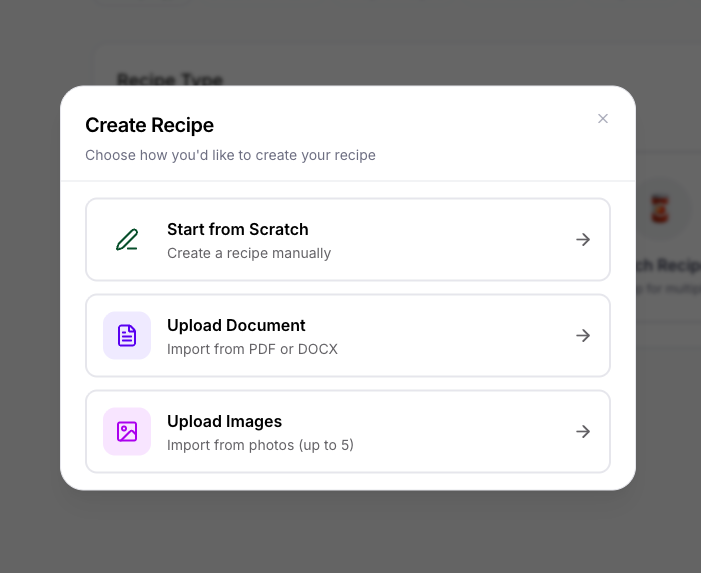
Image C11 — AI SOP input fields
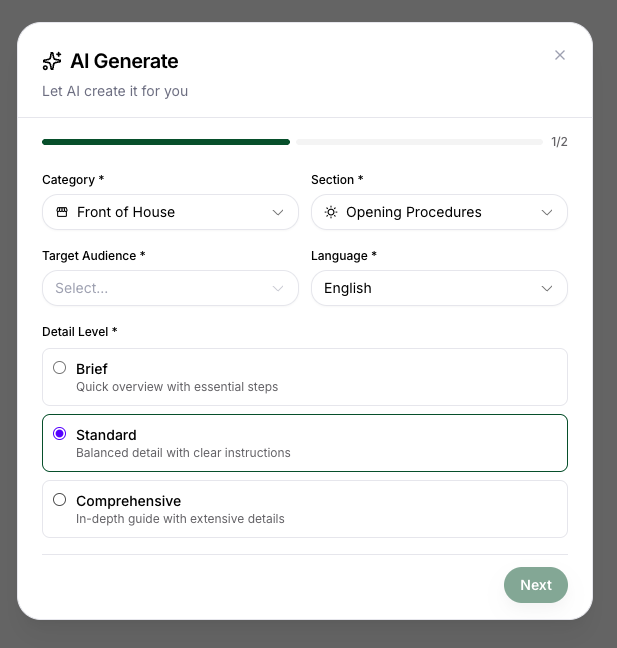
Image C12 — AI generated SOP draft
Building an SOP From Scratch
For new procedures or when you want full control:
- Go to Knowledge Base > My Manual > Add SOP
- Select Build From Scratch
- Select the Section it belongs to
- Enter the Title (e.g. "Opening Procedure – Kitchen")
- Write the SOP content – use numbered steps for procedures, plain language throughout
- Upload any supporting images, diagrams, or reference photos
- Click Save
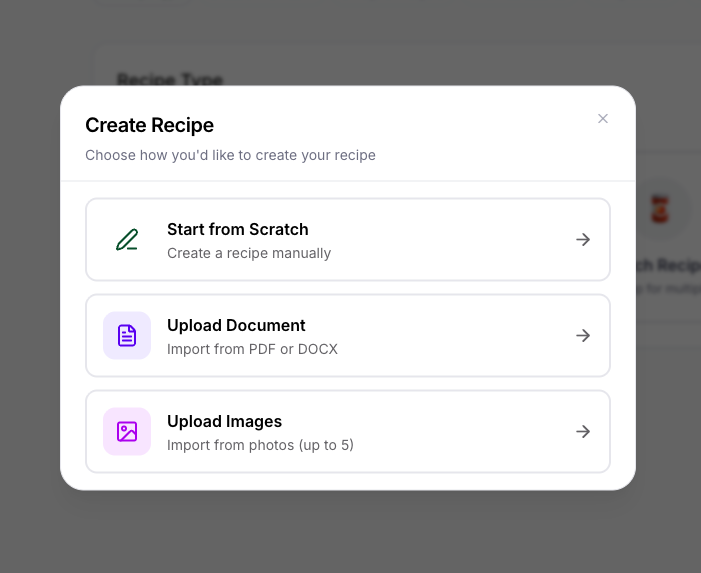
Image C13 — Build SOP from scratch editor
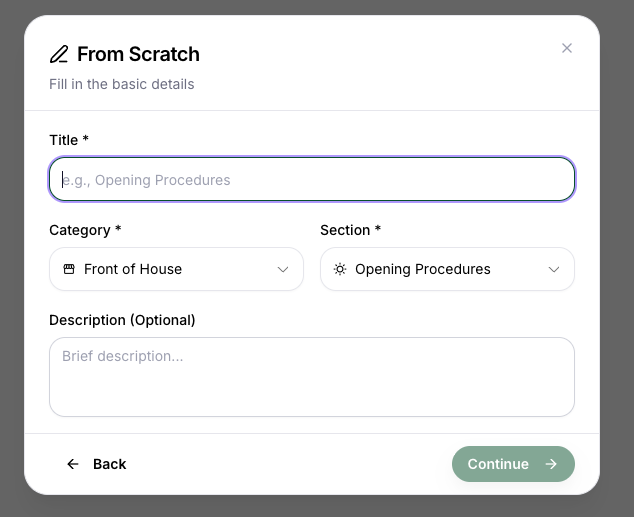
Image C14 — SOP content editing view
Importing From a Document
If you already have procedures documented in Word or PDF files, Import From Document is the fastest way to get them into Codex:
- Go to Knowledge Base > My Manual > Add SOP
- Select Import From Document
- Upload your document
- Review the imported structure and wording
- Save
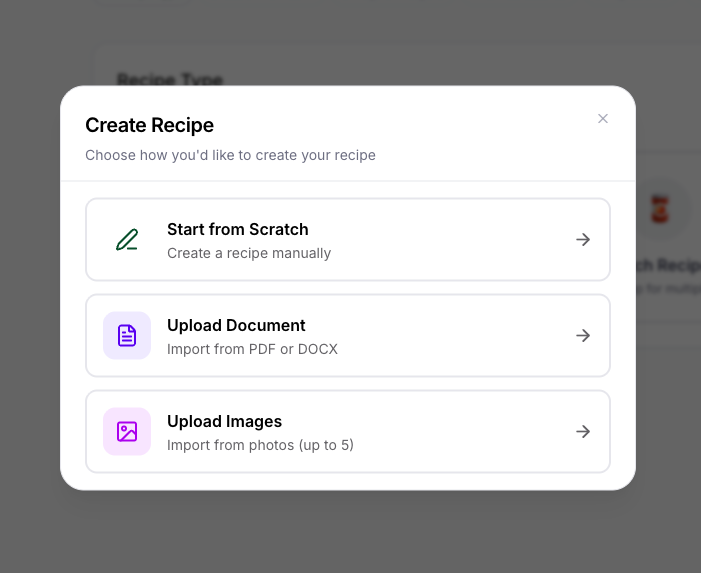
Image C15 — SOP import from document
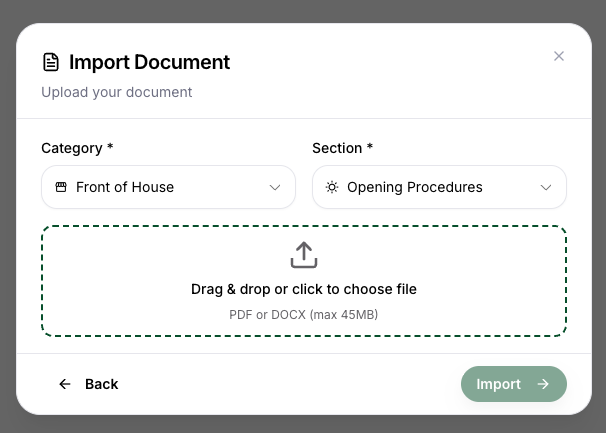
Image C16 — Imported SOP preview
Managing Access – Who Sees What
Just like recipes, every SOP starts as private. You assign access per item – by individual, role, or department.
- Open the SOP and go to Access Settings
- Assign access – by individual, role, or department
- Save – access is live immediately
- A new front-of-house hire doesn't see the kitchen's prep SOPs
- An intern doesn't see finance or HR documentation
- A senior chef can see proprietary sauce recipes that new hires cannot
- The Codex Bot will not surface an SOP to a staff member who doesn't have access to it
An outdated SOP is worse than no SOP – staff will follow it and produce the wrong result. Update it the same day a process changes. The Codex Bot uses whatever is currently saved – it doesn't know your process changed if you haven't updated the content.
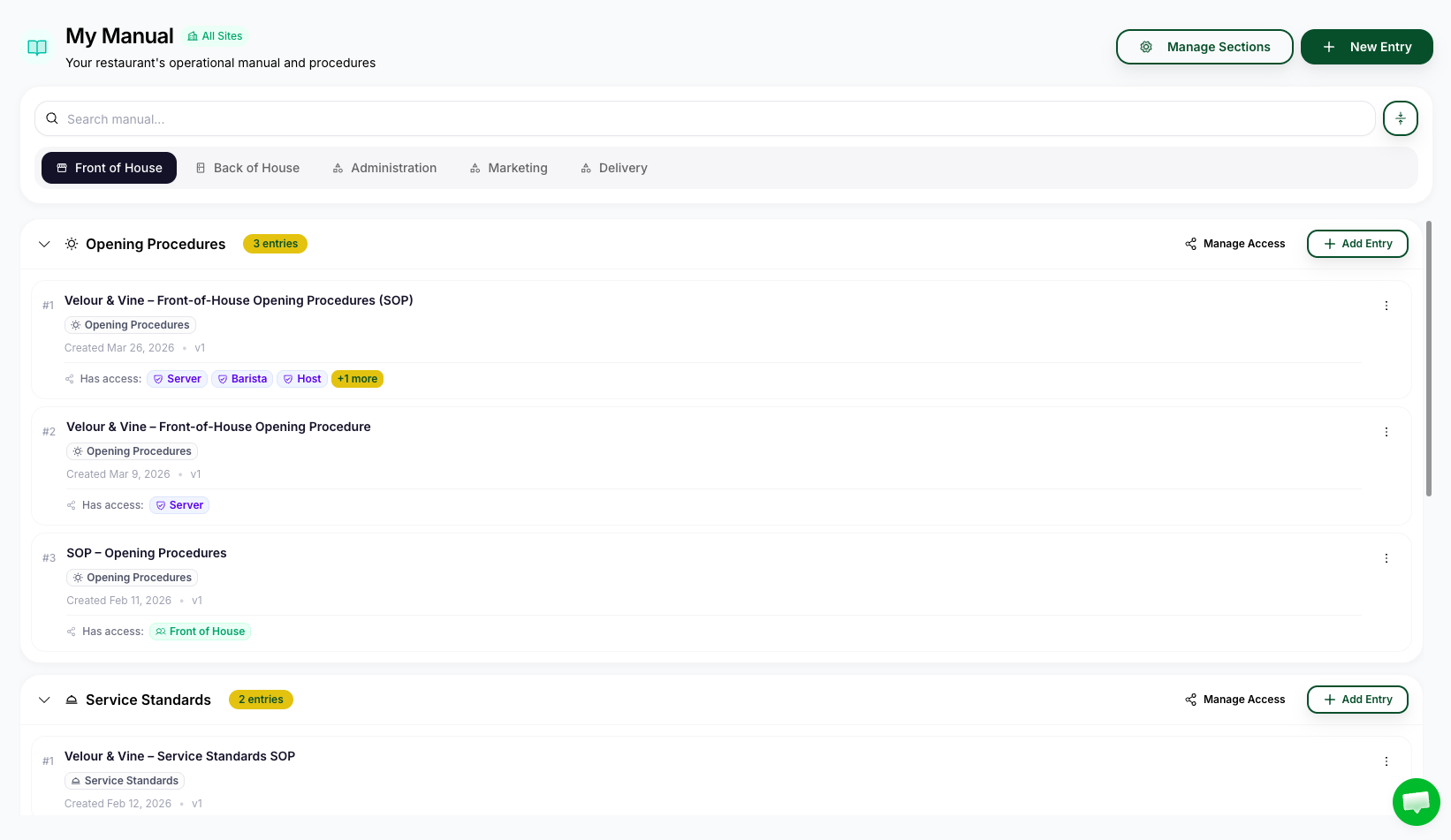
Image C17 — SOP access controls by user type
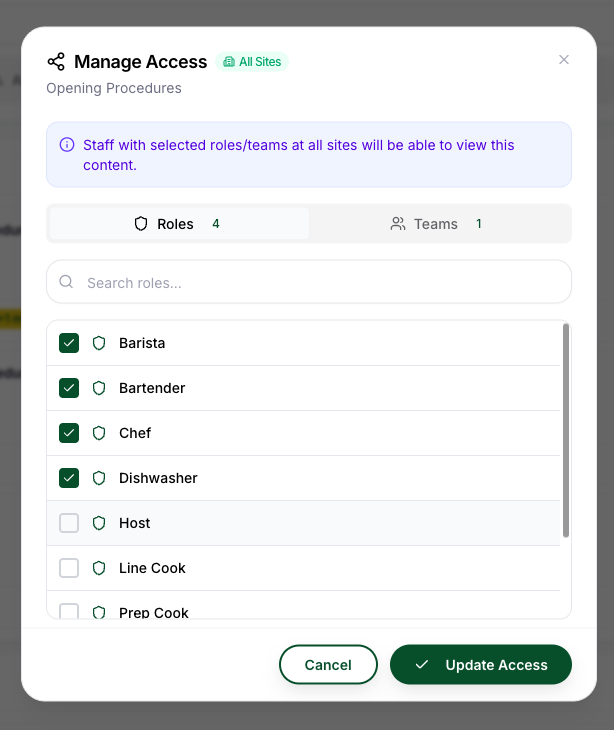
Image C18 — SOP visibility and permissions summary
Next Steps
- How Your Team Uses the Codex Bot →
- How to Build Your Recipe Library → (if you haven't done this yet)
Chat with us or email contact@restaurantcodex.com. Learn more about the Knowledge Base.