How Staff Complete Tasks & Submit Photo Proof
Everything your team needs to know about completing tasks on their phone.
| For | Module | Read Time |
|---|---|---|
| Staff | Operations | 2 min |
This article is written for staff – the team members on the floor completing tasks every shift. Share this article with your team when they first join Codex.
You need to be logged in to Codex. If you haven't logged in yet, see: Installing Codex & Logging In. Tasks only appear on your screen once your manager has assigned them to you.
Check your home screen at the start of every shift – your manager will have your tasks ready. If you don't see any tasks, check with your manager. They may not have assigned any yet for your shift.
Where to Find Your Tasks
When you log in to Codex, your home screen shows everything assigned to you for your shift. You can also see the Schedule for a full view of your week. You don't need to search for anything.
- Your task list shows all tasks assigned to you for your current shift
- Tasks due soon appear at the top
- Overdue tasks are highlighted – complete these first
- High priority tasks are visually flagged so you know what matters most
- The Schedule tab shows your tasks mapped across the week – read-only, no editing
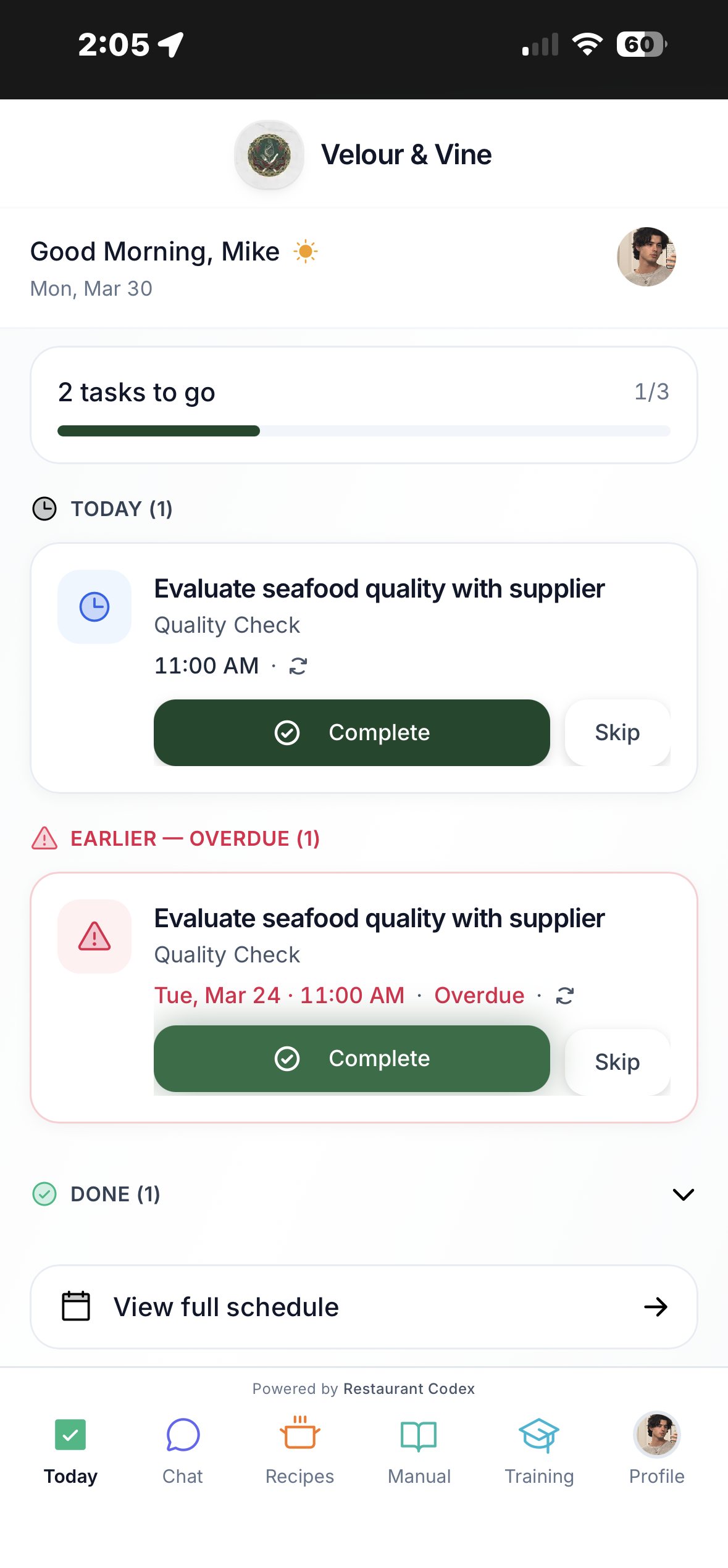
Image B10 — Staff home task list and schedule
How to Complete a Task
Completing a task is straightforward. Here's what to do:
- Tap the task on your home screen to open it
- Read the task description – it tells you exactly what needs to be done
- If there is a Linked SOP, tap it to read the full standard operating procedure
- Do the task
- If no photo is required: tap Mark as Complete
- If photo proof is required: upload your photos first, then tap Mark as Complete
- The task disappears from your list and your manager is notified instantly
How to Skip a Task
If you are unable to complete a task, you can skip it. Skipping is not the same as ignoring – it is a formal action that gets recorded.
- Open the task on your home screen
- Tap Skip Task
- The skip is registered in the system immediately
When you skip a task, it is logged in the system and appears on your staff profile. Your manager can see all skipped tasks when they view your profile in the Staff section. Only skip a task if you genuinely cannot complete it – and let your manager know why.
How to Upload Photo Proof
Some tasks require photos before you can mark them complete. Your manager sets how many photos are needed (between 1 and 7).
- Open the task and scroll to the Photo Required section
- You'll see how many photos are needed (e.g. "2 of 2 required")
- Tap Add Photo – take the photo directly with your camera, or upload from your gallery
- Repeat until all required photos are uploaded
- Tap Mark as Complete – the button activates once all photos are in
If your manager has set a photo requirement, the complete button won't activate until all required photos are uploaded. This protects you and your team by ensuring standards are met and documented.
- Make sure the photo is clear and well-lit – blurry or dark photos may be flagged
- Photograph exactly what the task asks for – show the full area, not just part of it
- Take the photo after completing the task, not before
Make sure Codex has camera permission on your phone.
- iPhone: Settings > Safari > Camera > Allow
- Android: Settings > Apps > Chrome > Permissions > Camera > Allow
Still not working? Message us using the chat button.
What Happens After You Complete a Task
Once you mark a task as complete:
- The task is removed from your active task list
- Your manager sees the completion instantly on the Activity Feed – with your name and a timestamp
- If you uploaded photos, your manager can view them directly from the Activity Feed
- For recurring tasks, the task reappears automatically at the next scheduled time
If a Task Looks Wrong or Is Missing
If you notice something wrong with a task – incorrect instructions, wrong deadline, or a task you expected isn't showing – don't try to work around it.
- Wrong task details: Let your manager know – only Owners and Managers can edit tasks
- Task not showing up: Ask your manager to check the task was assigned to you or your role
- Can't complete because of a photo issue: Use the chat button to report it
Next Steps
- Understanding the Dashboard, Activity Feed & Analytics → (for Owners & Managers)
- How to Use the Codex Bot → (Knowledge Base)
If something isn't working as expected, don't struggle with it. Email contact@restaurantcodex.com – tell us what you were doing and what happened. See how Operations works on the platform.