How Tasks & Checklists Work – A Quick Overview
Understand the full task flow end-to-end before you start building.
| For | Module | Read Time |
|---|---|---|
| Owner & Manager | Operations | 3 min |
Before you create your first task, it helps to understand how the whole system fits together. This article gives you the full picture in one place – no setup required, just context.
The Two Task Types
Every task in Codex is either a one-off or a recurring task. Understanding the difference helps you structure your operations correctly from day one.
| Task Type | What It Is | Example |
|---|---|---|
| One-Off Task | A single task assigned once with a specific deadline. Once completed it's done. | "Descale the coffee machine by Friday 6pm" |
| Recurring Task | Repeats automatically on a set schedule – daily, weekly, or custom days. Resets after each completion. | "Complete opening prep checklist every morning at 7am" |
- Opening and closing duties work best as Recurring Tasks – they reset automatically every day
- Equipment checks, maintenance, or event prep work best as One-Off Tasks with a specific deadline
- You can run as many tasks simultaneously as your operation needs
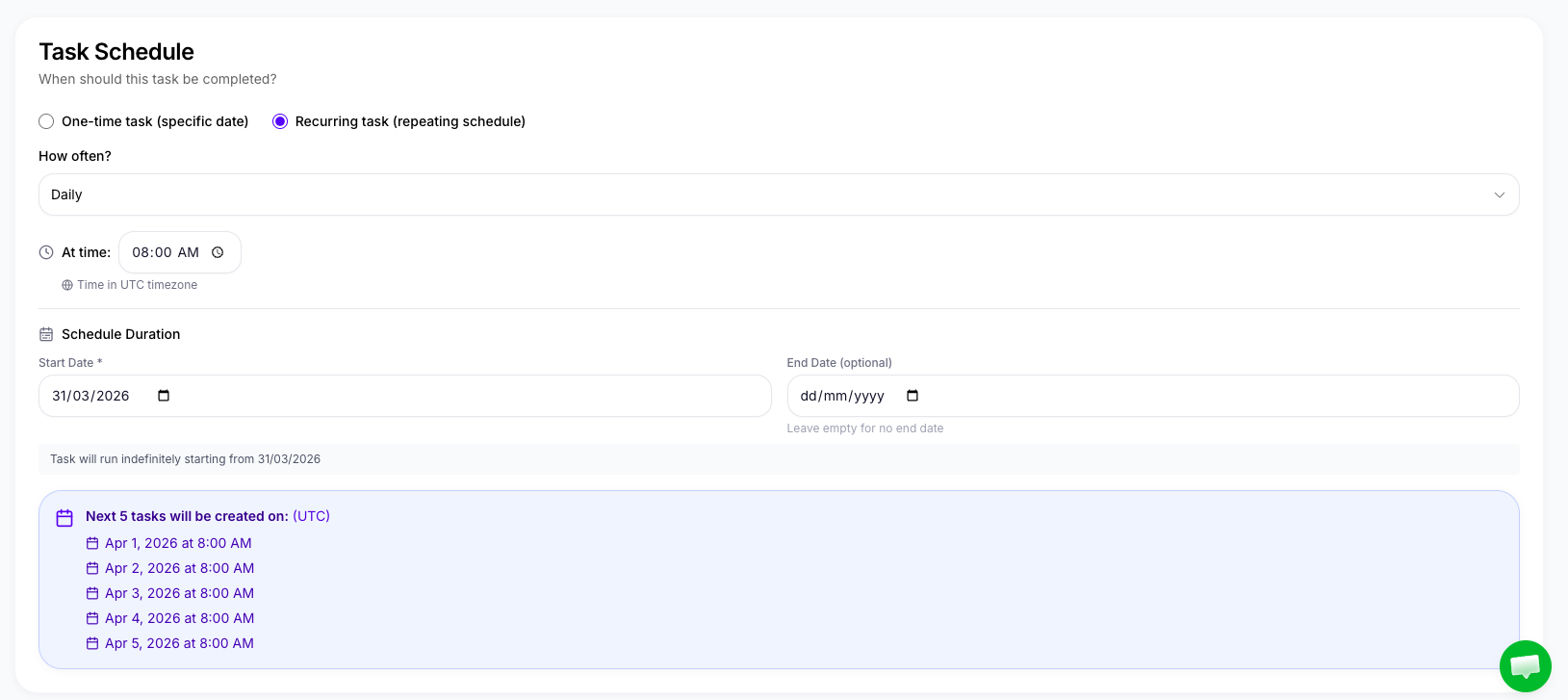
Image B1 — Task type selection in task builder
How Tasks Are Assigned
When you create a task, you choose who receives it. There are two ways to assign:
| Assignment Type | How It Works | Best For |
|---|---|---|
| Assign to an Individual | Send a task directly to one specific staff member by name. Only that person sees it on their task list. | Accountability-critical tasks where you need one person responsible |
| Assign by Role | Send a task to everyone who holds a specific job role – e.g. all Line Cooks, all Bartenders, or all Servers. | Role-specific duties the whole position needs to complete |
Use individual assignment when one person is responsible and accountable for the outcome. Use role assignment when the task applies to everyone in that position – such as a pre-shift prep task for all kitchen staff.
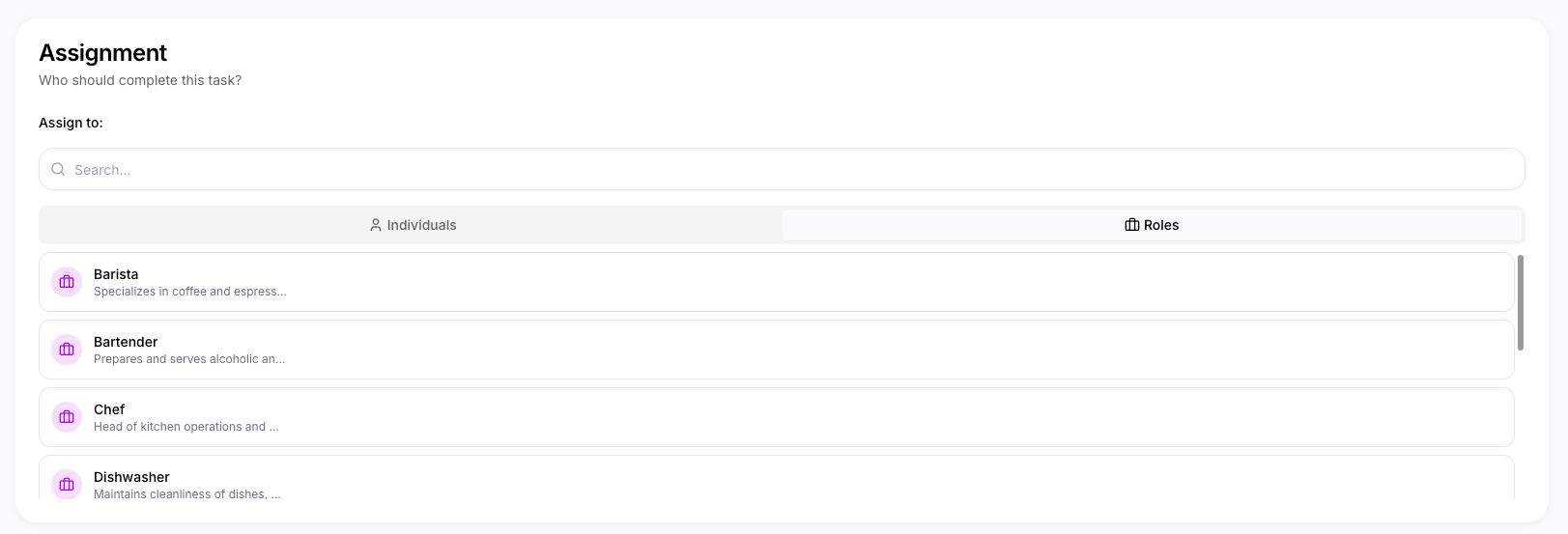
Image B2 — Assign task by individual or role
Shift-Based Assignment – AM & PM
Tasks can be assigned to a specific shift – AM or PM. When a staff member is onboarded, they are assigned a shift, and tasks assigned to that shift appear automatically on their schedule.
- Staff are assigned an AM or PM shift when they are onboarded
- When you create a recurring task, you set which shift it belongs to
- Only staff on the matching shift see that task on their schedule
- This keeps the AM team's task list clean from PM tasks and vice versa
Example: "Clean and stock the bar" is a PM task – only staff on the PM shift see it. "Opening prep – cold section" is an AM task – only the morning kitchen team receives it.
What Staff See on Their End
When a task is assigned, it appears immediately on the staff member's home screen and in their Schedule view. Both Owners/Managers and Staff can see tasks in the Schedule – it is a read-only view for everyone.
Staff see:
- The task name, description, and any linked SOP for reference
- The deadline or shift it's due in
- Whether photo proof is required – and how many photos
- A Mark as Complete button (and photo upload if required)
- A Skip Task option – if a staff member skips, it is logged in the system and visible on their profile
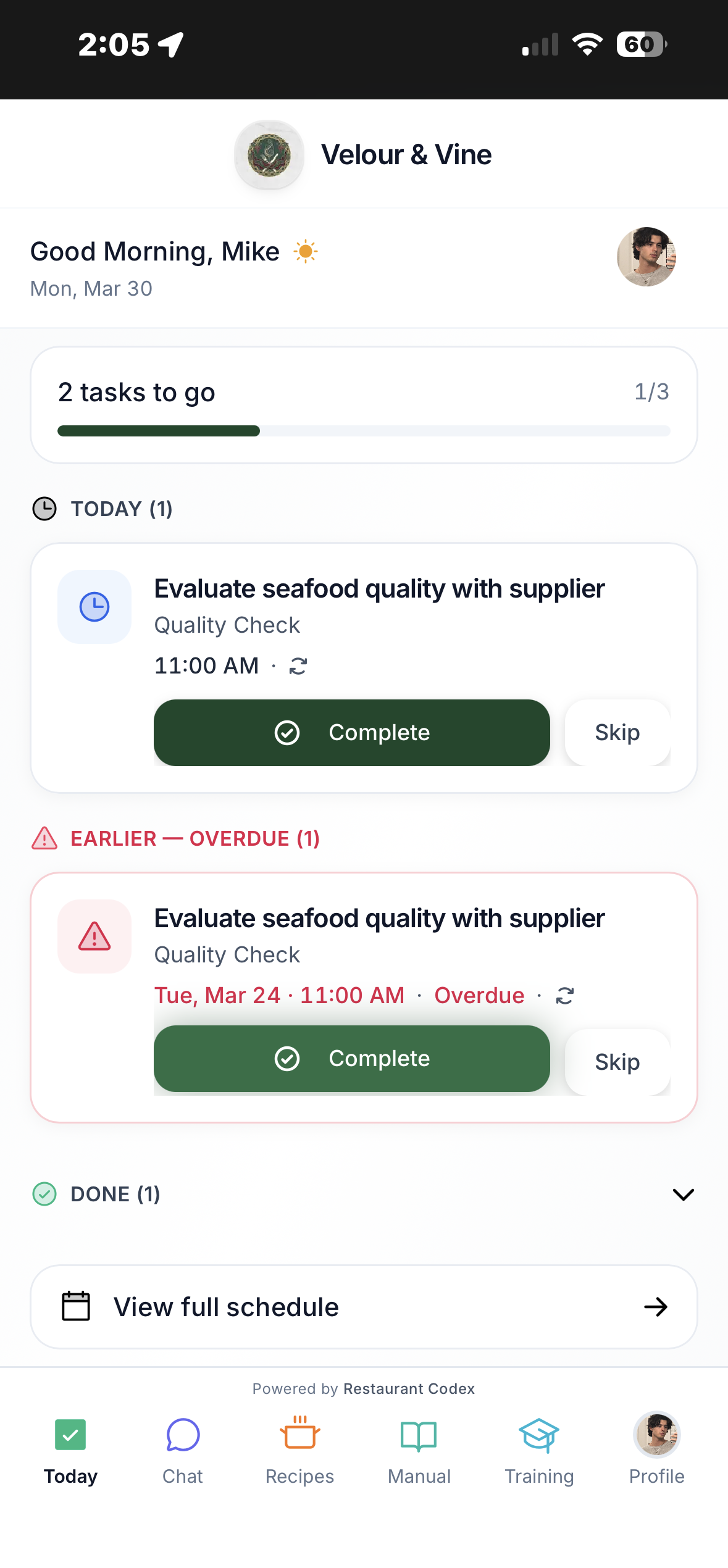
Image B3 — Staff task view with complete and skip options
How the Completion Loop Works
Here's the full flow from task creation to verification:
- Manager Creates the Task – Sets the title, description, site, priority, linked SOP (optional), assignee, shift, schedule, and photo evidence requirements.
- Staff Receives the Task – It appears instantly on their home screen and Schedule – no refresh needed.
- Staff Completes or Skips – They tap Mark as Complete and upload photos if required. If they skip, it is logged in their profile immediately.
- Manager Sees It in Real Time – The completion or skip appears instantly on the Activity Feed – with a timestamp and the staff member's name.
- Manager Reviews if Needed – If photo proof was required, the manager can view the uploaded photos directly from the Activity Feed or the task record.
The Activity Feed
The Activity Feed is your real-time view of everything happening across your operation. Every task completion, every skip, every update – it appears here the moment it happens.
- Updated in real time – no refreshing required
- Shows who completed or skipped what, and exactly when
- Flags overdue tasks so nothing falls through the cracks
- Visible to both Owners and Managers for their site(s)
- Multi-site Owners see activity across all locations in one feed
You no longer need to chase staff to find out if something was done. The Activity Feed gives you instant visibility without interrupting anyone on the floor.
Skipping a Day – Holidays & Closures
Owners and Managers can skip an entire day in Codex. When a day is skipped, all tasks scheduled for that day across the site are cancelled – no one receives them.
- Use this for public holidays, scheduled closures, or unexpected shutdowns
- All recurring tasks for that day are suspended – they resume automatically the next scheduled day
- Staff see the day marked as closed on their Schedule
- The skip is logged in the system for your records
How to Skip a Day: Go to Operations > Schedule, find the day, and select Skip Day. You will be asked to confirm – once confirmed, all tasks for that day are cancelled site-wide.
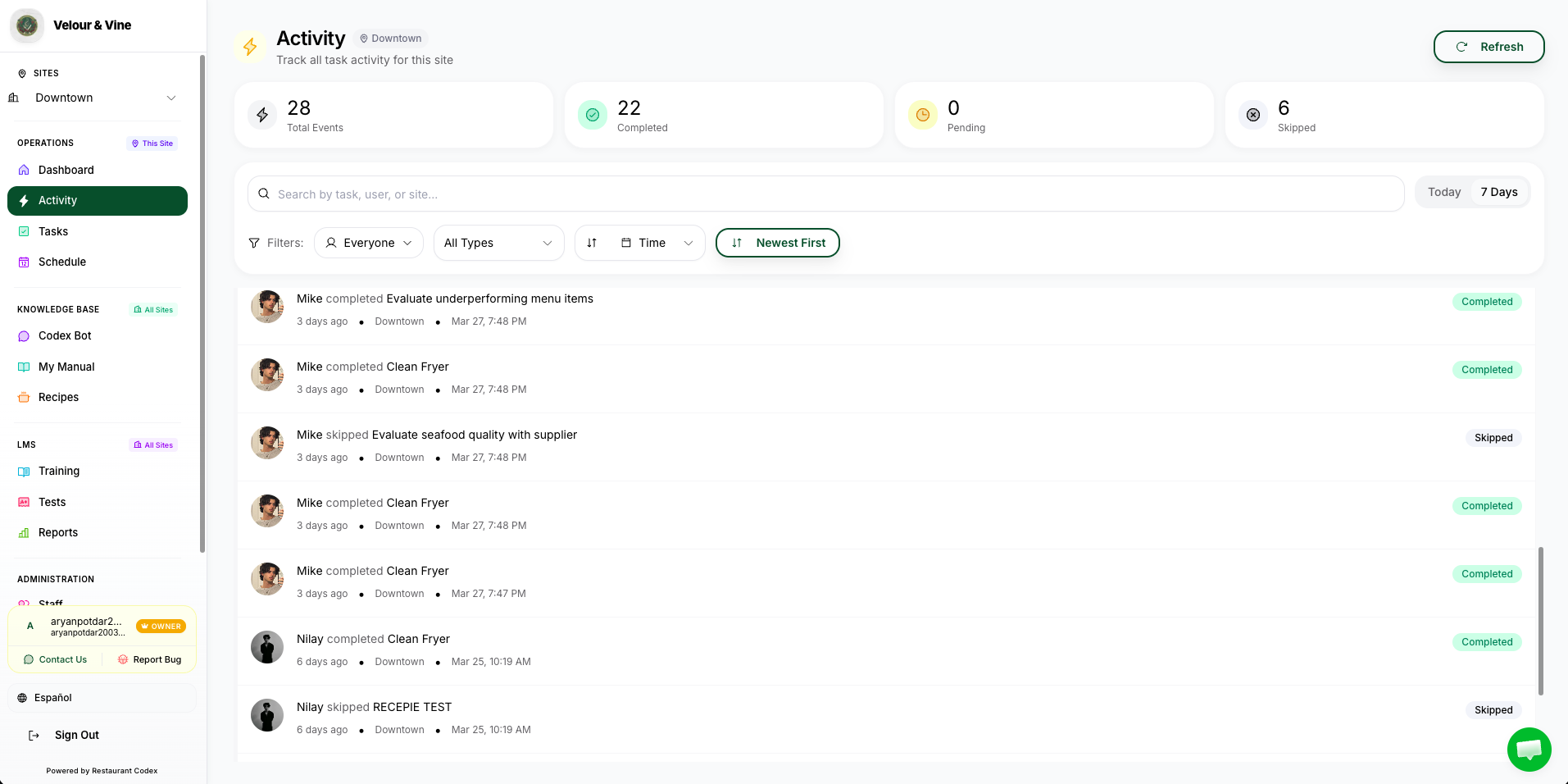
Image B4 — Skip day from schedule
Staff can skip a task, but it doesn't disappear – it is registered in the system. Skipped tasks appear on the staff member's profile, visible to Owners and Managers. Use the Staff section in the sidebar to review any team member's skip history.
Next Steps
- How to Create & Assign Tasks → – start building now
- How Staff Complete Tasks & Submit Photo Proof →
- Understanding the Activity Feed, Dashboard & Analytics →
Chat with us or email contact@restaurantcodex.com. Learn more about how Operations works.