How to Create & Assign Tasks
Build your operation task by task – with the full delegation engine.
| For | Module | Read Time |
|---|---|---|
| Owner & Manager | Operations | 5 min |
This article walks you through creating and assigning tasks in Codex – from a simple one-off job to a fully configured recurring shift task.
Make sure your staff have been invited, their roles assigned, and their shift (AM or PM) set. You need at least one Site set up. See: How to Set Up Your Account & Invite Your Team.
The Task Delegation Fields
Every task in Codex – whether one-off or recurring – uses the same set of fields. Here's what each field does and why it matters:
| Field | What It Does | Notes |
|---|---|---|
| Title | The name of the task – what staff see on their screen | Keep it short and action-oriented, e.g. "Clean prep station" |
| Description | Full instructions for completing the task correctly | Be specific – the clearer this is, the fewer questions you get |
| Site (Location) | Which restaurant location this task belongs to | Required. Multi-site Owners select from all their locations |
| Priority | Urgency level – Low, Medium, or High | High priority tasks are visually flagged on the staff's task list |
| Linked SOP | Optional – attach a relevant SOP from your Knowledge Base | Staff can tap the link to read the SOP directly from the task |
| Assignee | Who receives the task – Individual, Role, or Both | Individual = one person. Role = everyone with that job role |
| Shift | Whether the task belongs to the AM or PM shift | Only staff assigned to that shift will see it on their schedule |
| One-Off / Recurring | Whether this is a single task or repeats on a schedule | One-off needs a date & time. Recurring needs frequency settings |
| Recurrence Date & Frequency | For recurring tasks: when it starts and how often it repeats | Daily, Weekly, or specific days of the week |
| Photo Evidence | Toggle on/off. If on, set how many photos are required (1–7) | Staff cannot mark the task complete until all photos are uploaded |
How to Create a One-Off Task
A one-off task is for anything that needs to happen once by a specific date and time.
- Go to Operations > Tasks > Create Task
- Enter the Title and Description
- Select the Site (Location)
- Set the Priority – Low, Medium, or High
- Optionally, attach a Linked SOP from your Knowledge Base
- Under Assignee, choose Individual, Role, or Both – then select who
- Select the Shift – AM or PM
- Select One-Off and set the Due Date & Time
- Toggle Photo Evidence on if required – set the number of photos (1–7)
- Click Create Task – it is immediately sent to the assignee
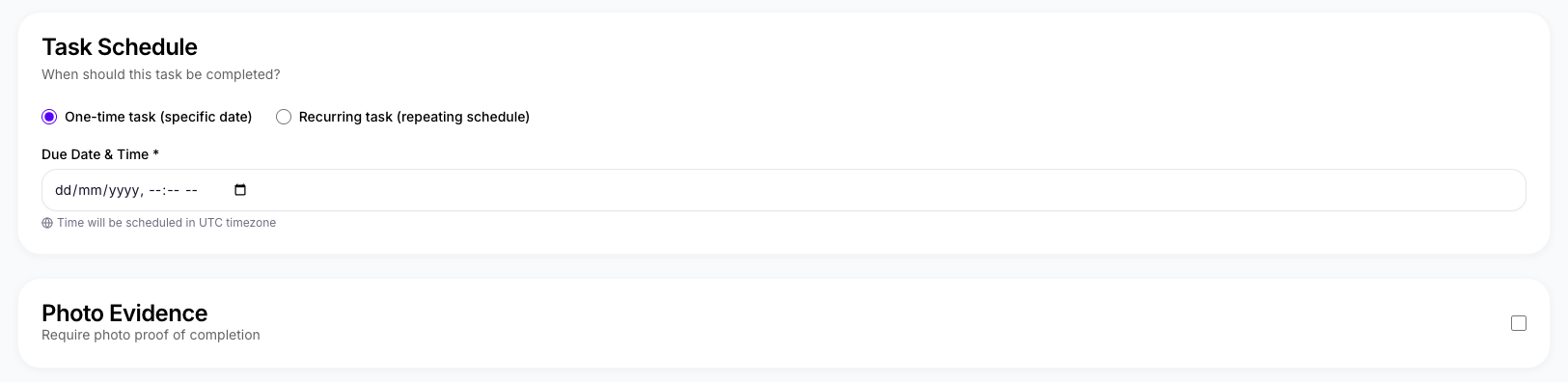
Image B5 — One-off task setup example
How to Create a Recurring Task
Recurring tasks reset and reassign automatically on your chosen schedule. Set it once and Codex handles the rest.
- Go to Operations > Tasks > Create Task
- Enter the Title and Description
- Select the Site (Location) and Priority
- Optionally attach a Linked SOP
- Set the Assignee – Individual, Role, or Both
- Select the Shift – AM or PM
- Select Recurring – then set the Start Date, Time, and Frequency (Daily, Weekly, or specific days)
- Toggle Photo Evidence on if required – set the number of photos
- Click Create Task
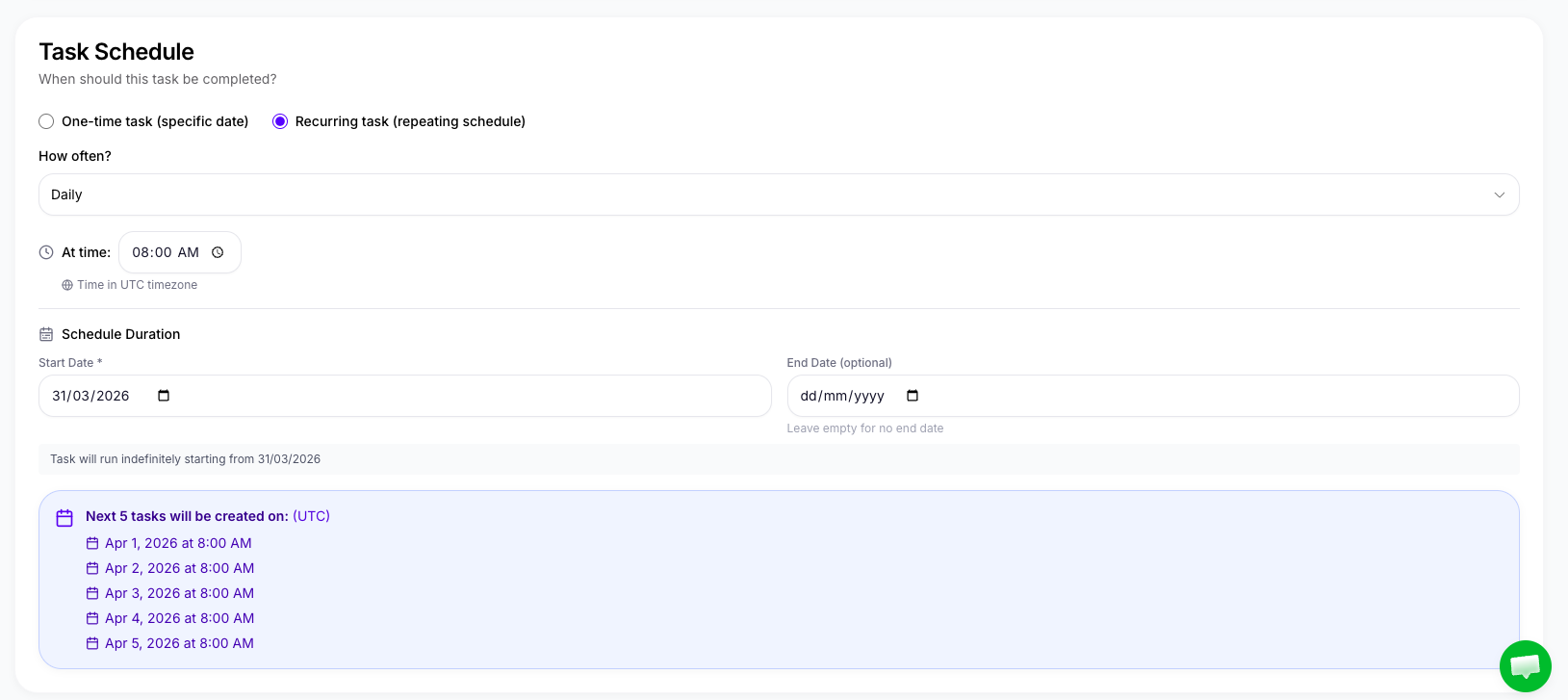
Image B6 — Recurring task setup with schedule options
Recurring tasks are best for anything that happens every shift – opening prep, closing checks, daily cleaning duties. The task automatically resets after each completion. If a day is skipped, that day's instance is cancelled and the schedule resumes normally.
Setting Photo Evidence Requirements
Photo evidence is optional on any task. When enabled, staff cannot mark the task complete until they've uploaded the required number of photos.
| Photos Required | Best Used When |
|---|---|
| 1 photo | Simple verification – task done, bin emptied, station cleaned |
| 2–3 photos | Multi-step tasks – before and after, or different angles of the same task |
| 4–7 photos | Complex audits or detailed inspections requiring full visual documentation |
Start with 1 photo for most tasks – enough for standard verification without adding friction. Use 2–3 photos for tasks where before/after proof helps (e.g. deep cleans, equipment checks). Reserve 4–7 photos for detailed inspections or compliance-level documentation.
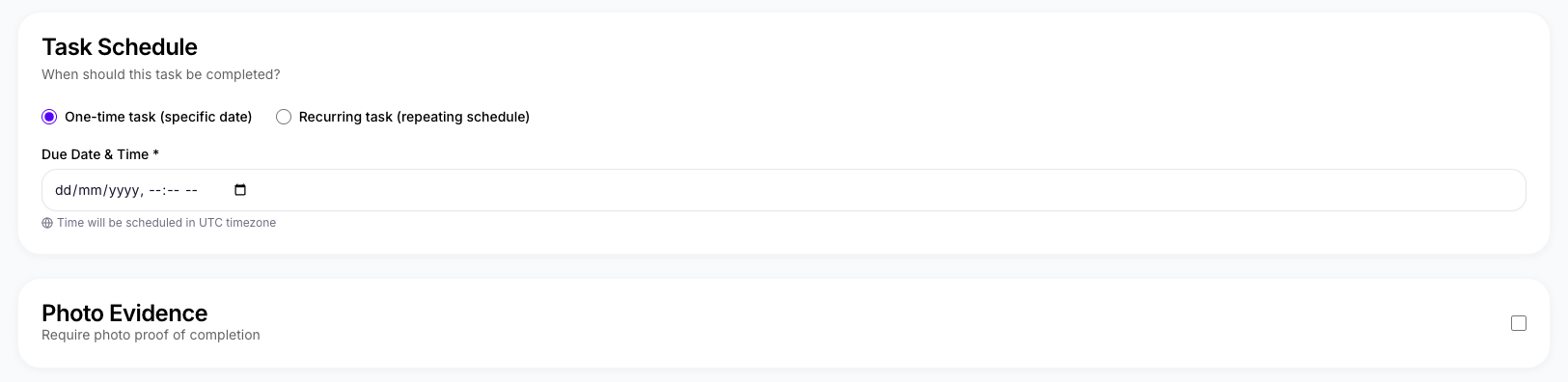
Image B7 — Photo evidence requirement settings
Viewing the Schedule
The Schedule is a read-only calendar view of all tasks mapped across the week. It is visible to both staff and Owners/Managers – everyone can see what's planned and when.
- Go to Operations > Schedule to open the weekly view
- All active recurring tasks appear on their scheduled days and times
- Tasks are colour-coded by shift – AM and PM are visually distinct
- Staff see only their own tasks on the schedule
- Managers and Owners see all tasks across their site
You cannot create or edit tasks from the Schedule view. To make changes, go to Operations > Tasks, find the task, and edit it there. The Schedule updates automatically whenever a task is created, edited, or deleted.
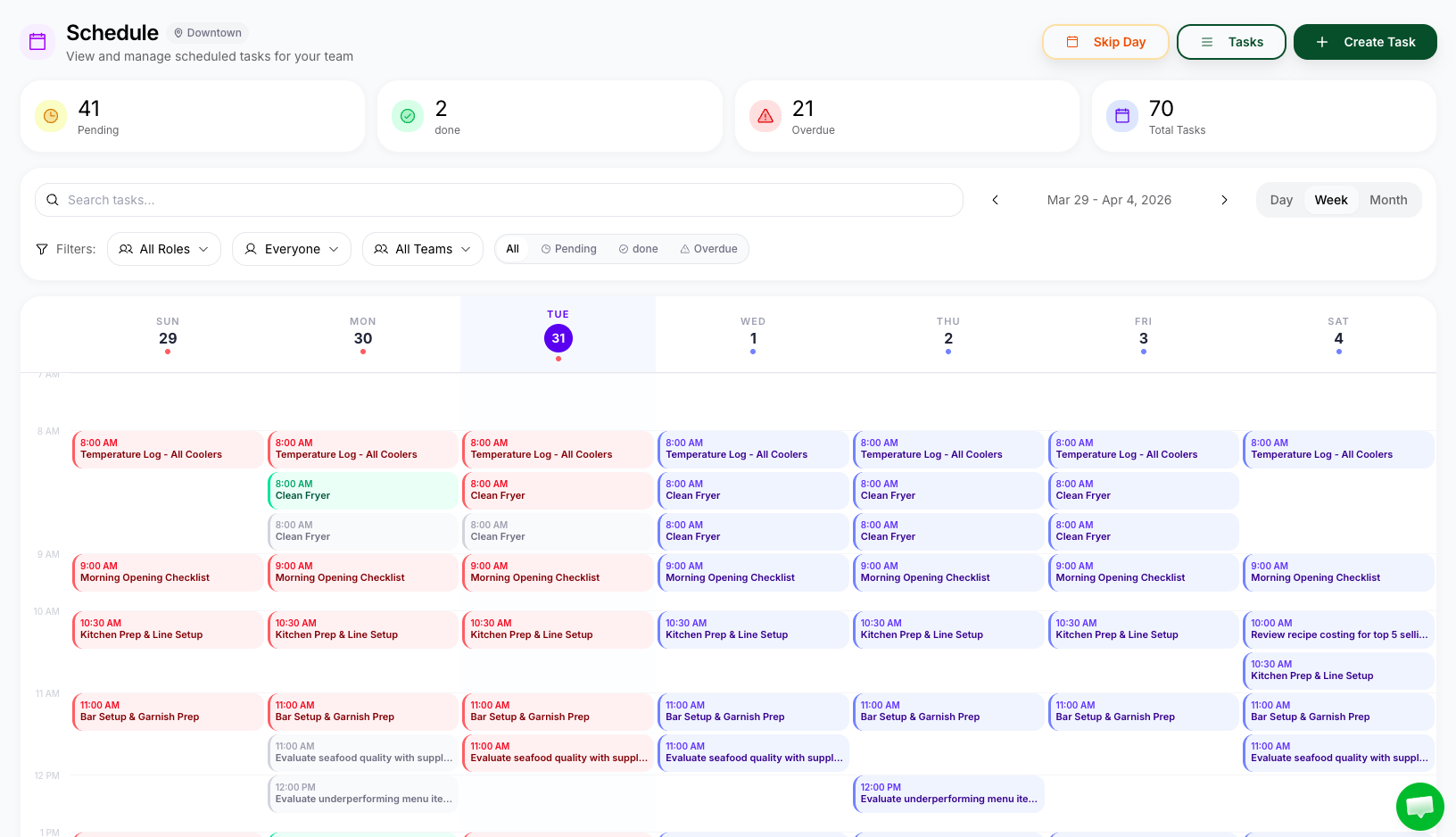
Image B8 — Weekly operations schedule view
Skipping a Day – Holidays & Closures
Owners and Managers can skip an entire day at a site. When a day is skipped, all tasks scheduled for that day are cancelled – no staff receive them.
- Go to Operations > Schedule
- Find the day you want to skip
- Click Skip Day and confirm
- All tasks for that day at the site are immediately cancelled
- Recurring tasks resume automatically from the next scheduled day
Use this for public holidays, unexpected closures, or scheduled maintenance days. Staff will see the day marked as closed on their Schedule – no tasks, no confusion.
Editing & Deleting Tasks
You can edit or delete any task at any time from the Operations section.
- Go to Operations > Tasks
- Find the task and tap the three-dot menu (⋮) next to it
- Select Edit to update any field, or Delete to remove it entirely
Deleting a recurring task removes all future instances immediately. Completed past instances remain in the Activity Feed and staff profiles for your records.
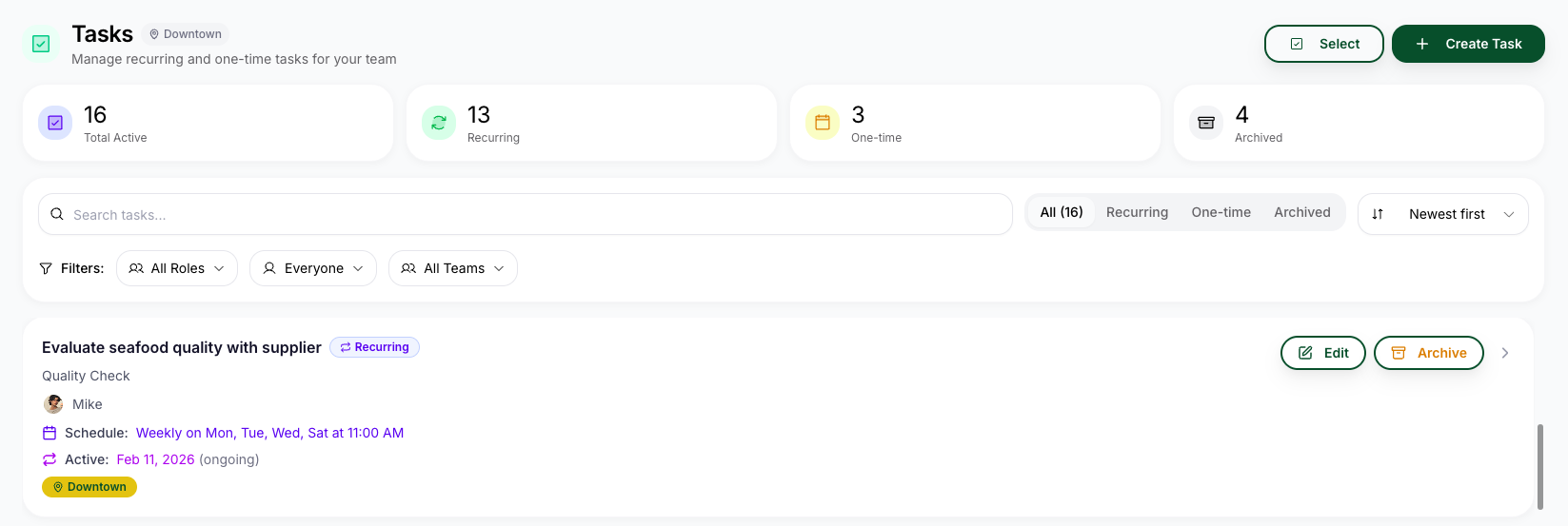
Image B9 — Edit or archive task controls
Next Steps
- How Staff Complete Tasks & Submit Photo Proof →
- Understanding the Activity Feed, Dashboard & Analytics →
Chat with us or email contact@restaurantcodex.com. See the Operations overview.