How to Build Your Recipe Library
Plate recipes, batch recipes, mis en place, and access control – all in one place.
| For | Module | Read Time |
|---|---|---|
| Owner & Manager | Knowledge Base | 5 min |
Your Recipe Library is where every dish and preparation your restaurant produces gets documented – from the final plate a server delivers to the batch sauces a prep cook makes at 6am. Everything lives here, fully organised and access-controlled so the right people see the right content.
The Two Recipe Types
Before creating a recipe, you choose which type it is. Both types use the same builder – the difference is in what they document and who they're for.
| Recipe Type | What It Is | Primarily Used By |
|---|---|---|
| Plate Recipe | The complete finished dish – preparation, assembly, and final presentation. Includes mis en place steps with photos, ingredients, allergens, and plating specs. | Kitchen team & Servers |
| Batch Recipe | A larger preparation used across multiple dishes – sauces, stocks, marinades, spice blends, dough batches. Includes yield, quantities, and scaling notes. | Back of House / Prep team |
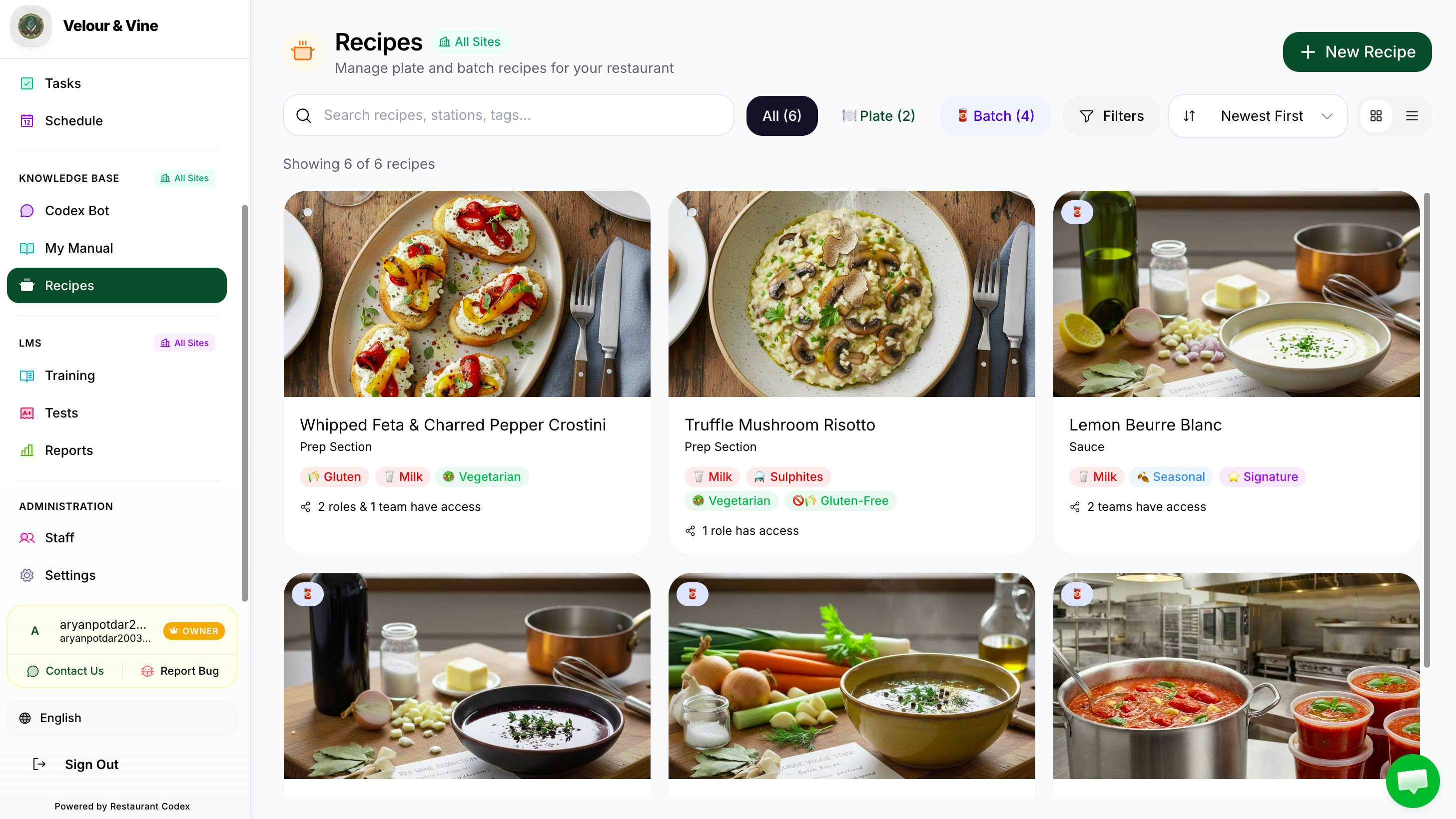
Image C1 — Recipe library dashboard
Batch recipes can be linked directly inside a plate recipe as an ingredient. For example: a Salmon dish calls for "House Beurre Blanc" – instead of listing all those ingredients again, you link the Beurre Blanc Batch Recipe. Update the batch recipe once and every plate recipe linked to it reflects the change automatically.
Three Ways to Create a Recipe
When you click Add Recipe, you're presented with three creation methods. Choose the one that fits how your content currently exists:
- Build From Scratch – Create the recipe directly inside Codex using the structured recipe builder. Best for new recipes or when you want full control over the content and format.
- Import From Image – Upload a photo of a handwritten recipe card, a printed menu, or a scanned document. The OCR system reads the image and converts it into structured recipe content. Review and confirm before saving.
- Import From Document – Upload an existing Word doc or PDF. Codex AI reads the document and automatically extracts and structures the content into the recipe format. Review and confirm before saving.
If you already have recipes written up somewhere – printed menus, handwritten cards, old Word docs – use Import to get them into Codex quickly. The AI and OCR do the heavy lifting. You just review and save.
Content in the Knowledge Base lives within the platform – it cannot be exported or downloaded. This protects your intellectual property and keeps your standards secure.
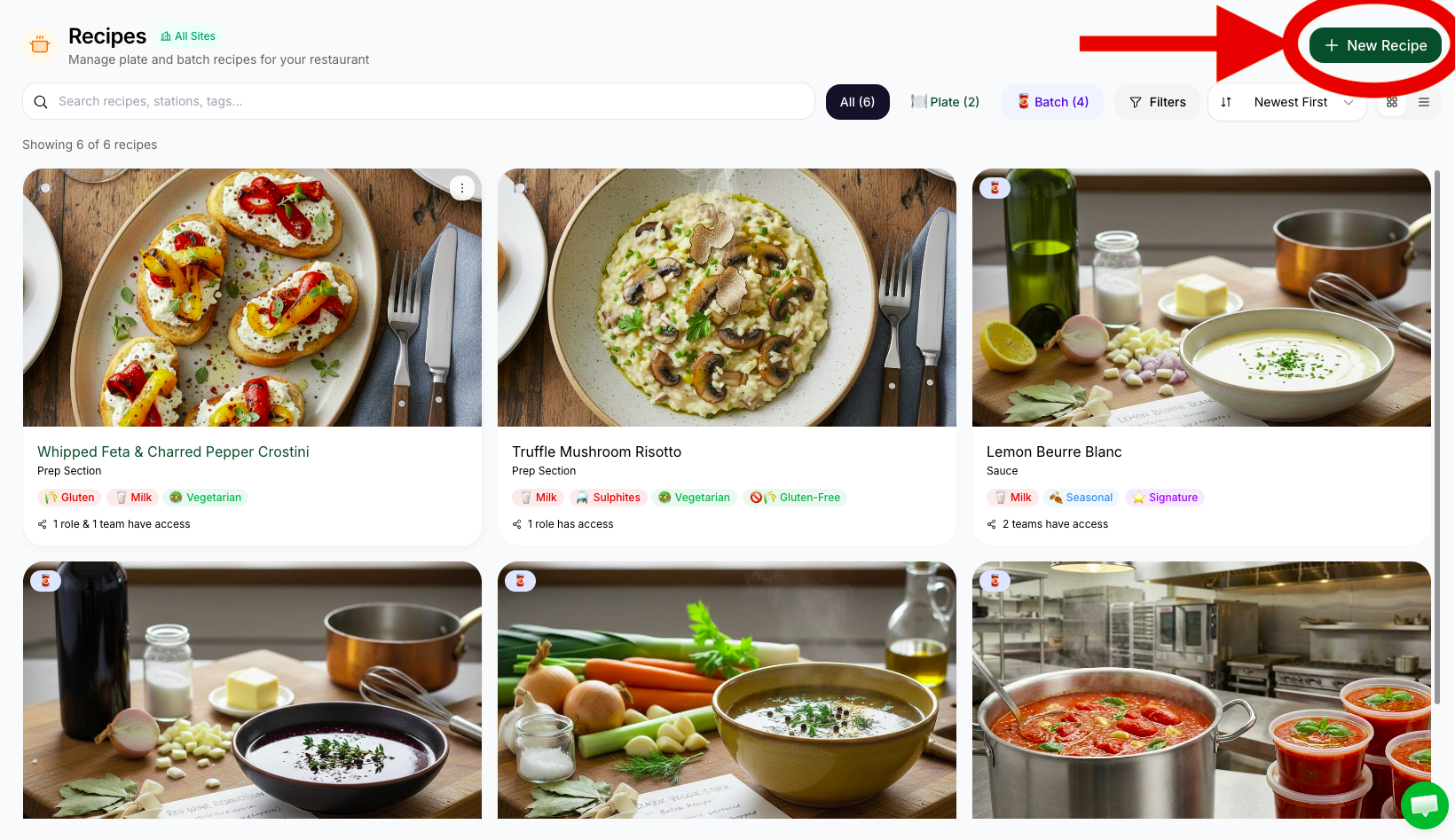
Image C2 — Recipe creation method options
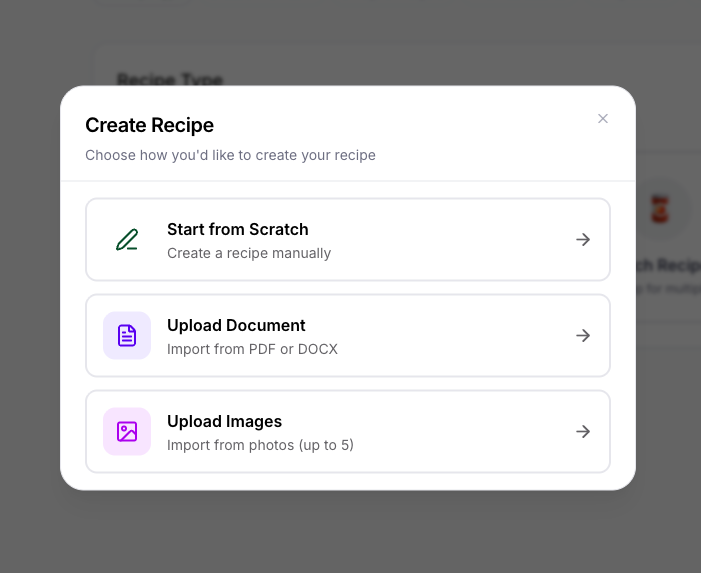
Image C3 — Create new recipe screen
Recipe Fields – What You'll Fill In
Once you've chosen your creation method and selected Plate or Batch recipe, here's every field you'll work through:
| Field | What It Does | Notes |
|---|---|---|
| Title | Name of the recipe | e.g. "Pan-Seared Salmon – Main" |
| Description | Brief summary of the dish or preparation | Used in search and Codex Bot answers |
| Photo | Cover image for the recipe | The reference photo staff see when they open it |
| Department | Which section this recipe belongs to | e.g. Grill Section, Pastry Department, Prep, Bar |
| Ingredients | Each ingredient with quantity and unit | Batch recipes can be linked directly as an ingredient |
| Allergens | Select all allergens that apply | Helps staff answer guest questions accurately |
| Dietary Flags | Vegan, gluten-free, contains nuts, etc. | Shown to staff and surfaced by Codex Bot |
| Mis en Place Steps | Step-by-step preparation with photos attached to each step | Multiple photos per step – shows exact stage of the dish |
| Final Presentation | Multiple photos from different angles + exact plating notes | Plate Recipe only – critical for servers and pass checks |
| Cross-Sell / Upsell Links | Link related items – wine pairings, sides, desserts | Gives servers recommendations directly from the recipe |
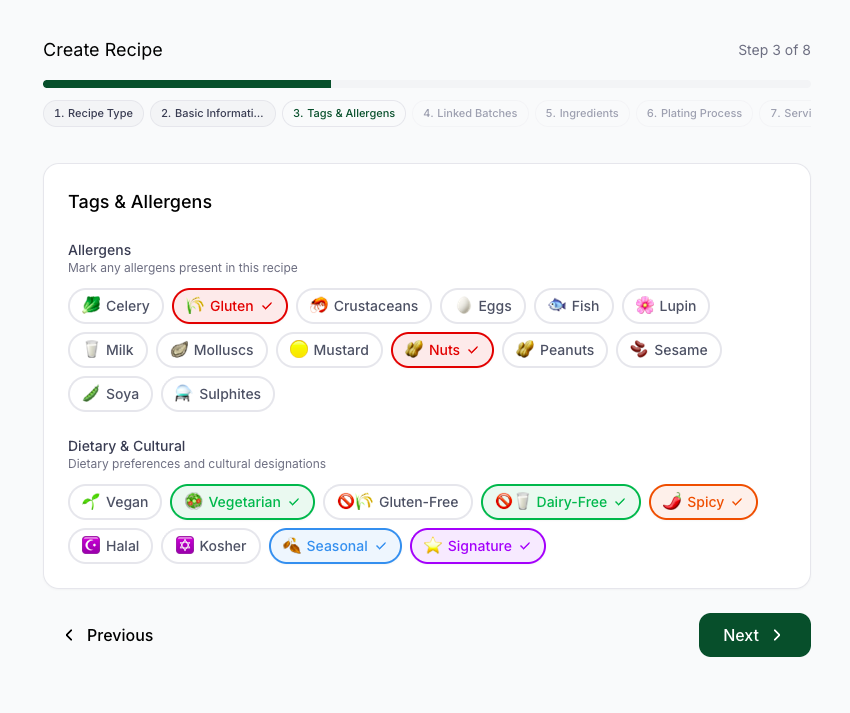
Image C4 — Recipe fields and form layout
Mis en Place – Step-by-Step with Photos
The Preparation section is one of the most powerful parts of the recipe builder. As you add each preparation step, you can attach multiple photographs to it – so staff can see exactly what the dish or preparation should look like at every stage.
- In the Preparation section, add your first step
- Write the instruction clearly (e.g. "Score the salmon skin with three diagonal cuts, 1cm deep")
- Tap Add Photo to attach one or more reference photos for that step
- Add the next step and repeat
- Continue through the full preparation process
A new hire can follow the recipe step-by-step with visual reference at every stage – no need to shadow a senior chef to learn a dish. Standards stay consistent regardless of who is in the kitchen. The Codex Bot can also reference these steps when staff ask how to prepare something.
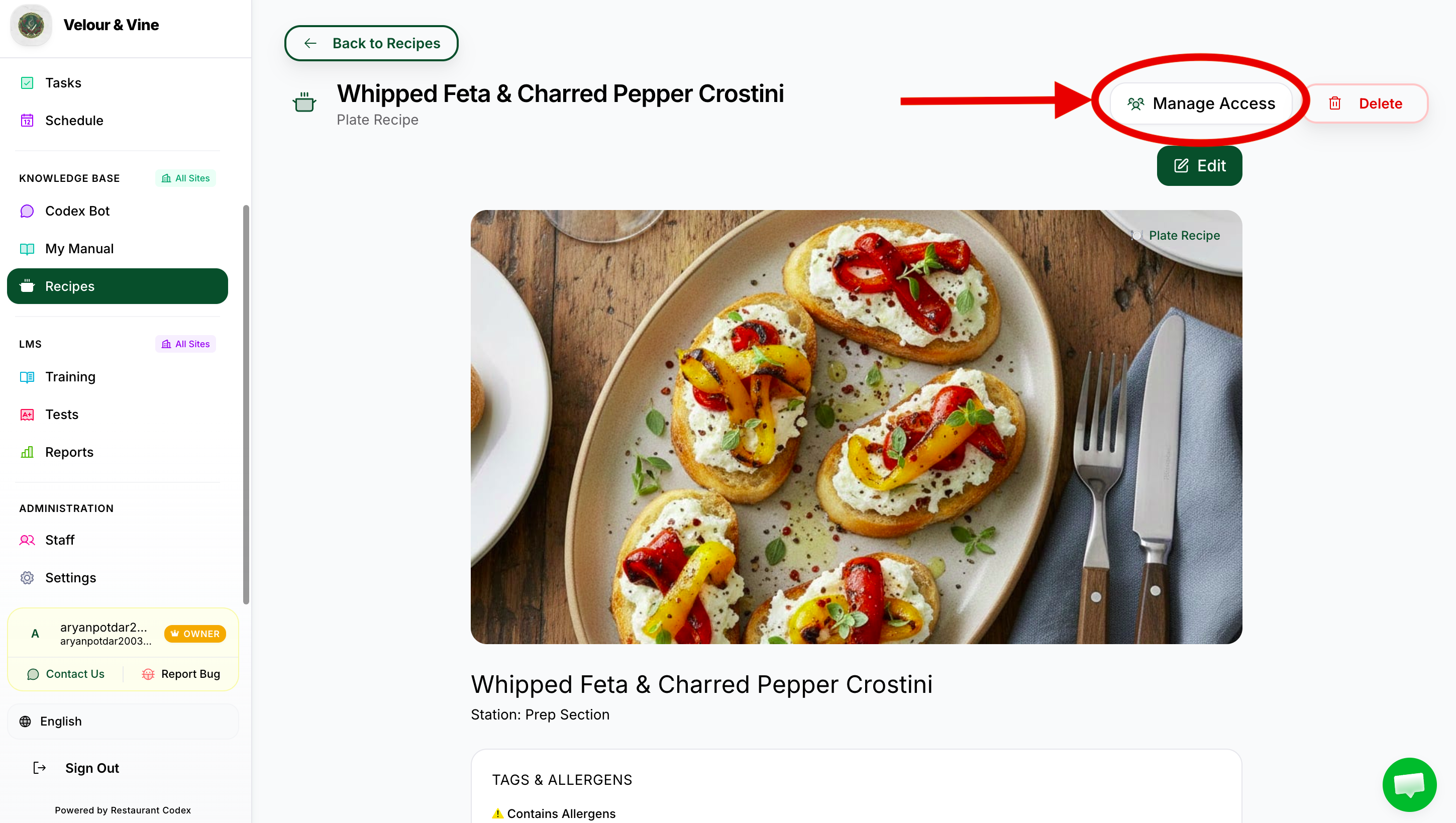
Image C5 — Recipe access settings panel
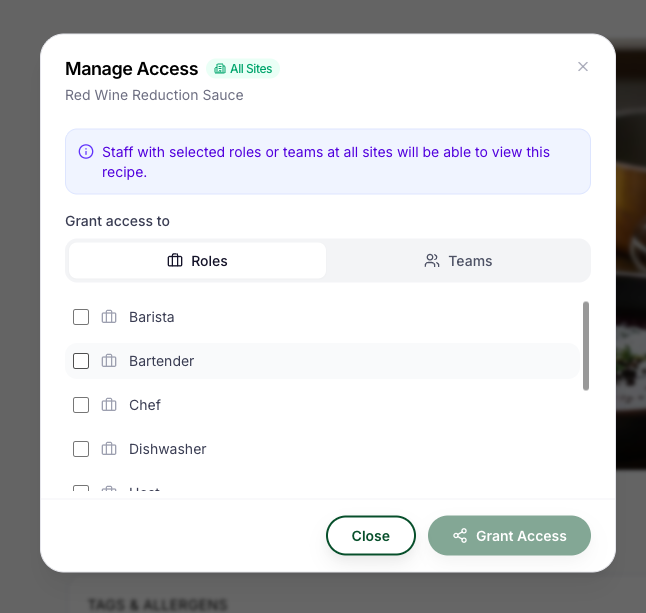
Image C6 — Access assignment by role and department
Final Presentation
At the end of a plate recipe, you add the Final Presentation section – this documents exactly how the finished dish should look when it leaves the pass.
- Add multiple photographs from different angles
- Add exact plating notes – position of each element, sauce placement, garnish, portion size on the plate
- This section is especially useful for servers who need to know what a correctly plated dish looks like before it reaches the guest
- Pass managers can use it as a visual check standard
Cross-Sell & Upsell Links
Inside each recipe, you can link related items for cross-selling and upselling purposes.
- A main course can link to a recommended wine, a side dish, or a dessert pairing
- Gives servers a reference point when making recommendations at the table
- Accessible directly from the dish's recipe page – no searching required
Managing Access – Who Sees What
Every recipe you create starts as private. Before any staff member can access it – including through the Codex Bot – you need to assign access explicitly.
- Open the recipe and go to Access Settings
- Select who can access this recipe – by individual, role, or department
- Save – access is live immediately
| Access Level | Who Gets Access | Best Used For |
|---|---|---|
| Individual | One specific staff member by name | Confidential recipes, senior chef-only content |
| Role | Everyone with a specific job role | All Line Cooks, all Bartenders, all Servers |
| Department | Everyone in a specific department or section | All Back of House, all Front of House |
Every recipe and SOP has its own access settings. Adding someone to your team does not automatically give them access to all content. You control exactly what each person or role can see.
The Codex Bot respects access settings. If a staff member asks the bot about a recipe they don't have access to, the bot will not answer it. A new hire won't see the head chef's signature sauce recipe unless you choose to share it. Access is set per item – take the time to configure it correctly from the start.
Next Steps
Chat with us or email contact@restaurantcodex.com. See how the Knowledge Base works.